
UpWiz
  • Home
  • Features
  • Pricing
  • FAQ
UpWiz.

Update with confidence.

© 2026 UpWiz

Start Trial
Start Trial Pricing
Start Trial

Getting Started

2
  • What Is UpWiz
  • Install and Activate

Analyzing Updates

5
  • The Details Drawer
  • Changelog Viewer
  • Vulnerability Detection
  • AI Risk Analysis
  • Understanding AI Recommendations

Pro Features

6
  • What Is Included in Pro
  • Activating UpWiz Pro
  • Smart Auto-Updates
  • Backup and Rollback
  • Enhanced AI Analysis (Pro)
  • Safety Settings: Release Delay, Health Check, and Auto-Rollback

Settings

8
  • Settings Overview
  • Notifications and Email Settings
  • Auto-Update Settings
  • Exclusions: Hiding and Excluding Plugins
  • Update Schedule
  • Backup Settings
  • Site Health Tab
  • Auto-Update Log

The Dashboard

6
  • Dashboard Interface Overview
  • Update Severity Labels
  • Filtering and Searching Updates
  • Hiding Plugins from the Dashboard
  • Refresh Button and AI Usage Badge
  • Plugin Cards and Status Icons

Troubleshooting

5
  • Connection and API Issues
  • AI Analysis Errors
  • Update Failures
  • License Validation Issues
  • Site Health Check Failures

Updating Plugins

3
  • One-Click Updates
  • The Sequential Update Queue
  • Premium Plugins and Vendor Links

FAQ

6
  • Privacy Overview: What Data UpWiz Collects
  • Vulnerability Data Sources
  • API Key and License Key Safety
  • Pre-Purchase Questions
  • Hosting and Compatibility Questions
  • Billing and Subscription Questions

License and Plans

5
  • License Options: Free, Trial, and Pro
  • Connecting a License Key
  • Starting a Free Trial
  • License and Plan Tab
  • Plan Comparison
View Categories
  • Home
  • UpWiz Docs
  • Analyzing Updates
  • Changelog Viewer

Changelog Viewer

< 1 min read

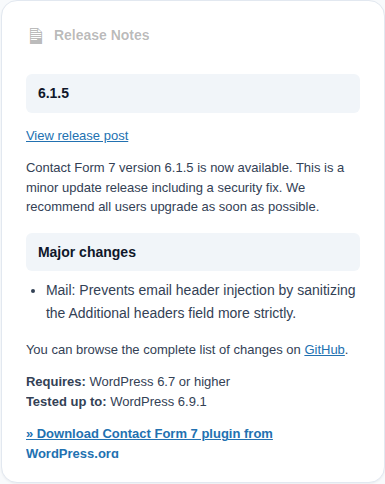
Changelog section inside the UpWiz details drawer

The changelog viewer shows the most useful release notes UpWiz can find for the update you are considering.

Why it matters #

  • It helps you see whether the release looks routine or deserves closer review.
  • It can highlight security fixes, compatibility notes, migrations, or breaking changes.

How to use it #

Open a plugin’s details drawer and read the changelog before updating important plugins. If UpWiz cannot show useful release notes, especially for premium plugins, check the plugin vendor’s site or your vendor account.

The AI summary can help you scan faster, but the changelog is still the best place to confirm what changed.

What are your Feelings

  • Happy
  • Normal
  • Sad

Share This Article :

  • Facebook
  • X
  • LinkedIn
  • Pinterest
The Details DrawerVulnerability Detection
Table of Contents
  • Why it matters
  • How to use it
UpWiz

Safer WordPress plugin updates, with changelog review, vulnerability checks, AI summaries when available, and Pro rollback tools.

Product

  • Features
  • Pricing
  • FAQ
  • Start Trial

Resources

  • Documentation
  • Support

© 2026 UpWiz. All rights reserved.

Privacy Policy · Terms of Service